

NEW TEXT EDITOR
Improved text editor usability: contextual menus for tables, images, links based on feedback.
INTRODUCTION
Swydo’s report text editor needed a refresh: a new menu behaviour, and new contextual menus for tables, images, and links — informed by patterns we saw in how clients actually used the editor day to day.
The previous menu activated by elevating the whole text widget, which pulled focus away from the actual editing task.
PROJECT
I moved the menu to sit above the widget instead of inside it, keeping the widget’s behaviour consistent with other report widgets and putting focus back on the menu itself. From there, I designed new contextual menus for tables, images, and links, each tailored to what users actually needed to do with that content type.
CHALLENGE
Tables needed the most work: users had to edit cell content, insert or delete rows and columns, and adjust column widths, but the existing menu buried these actions. I looked at how other products handle table editing and adapted a more discoverable pattern, then extended the same contextual-menu thinking to image and link editing so the whole editor felt consistent.
MY ROLE
I worked as the Product Designer on the report text editor, running the usability research and designing the new menu placement and the contextual menus for tables, images, and links.
NEW MENU POSITION
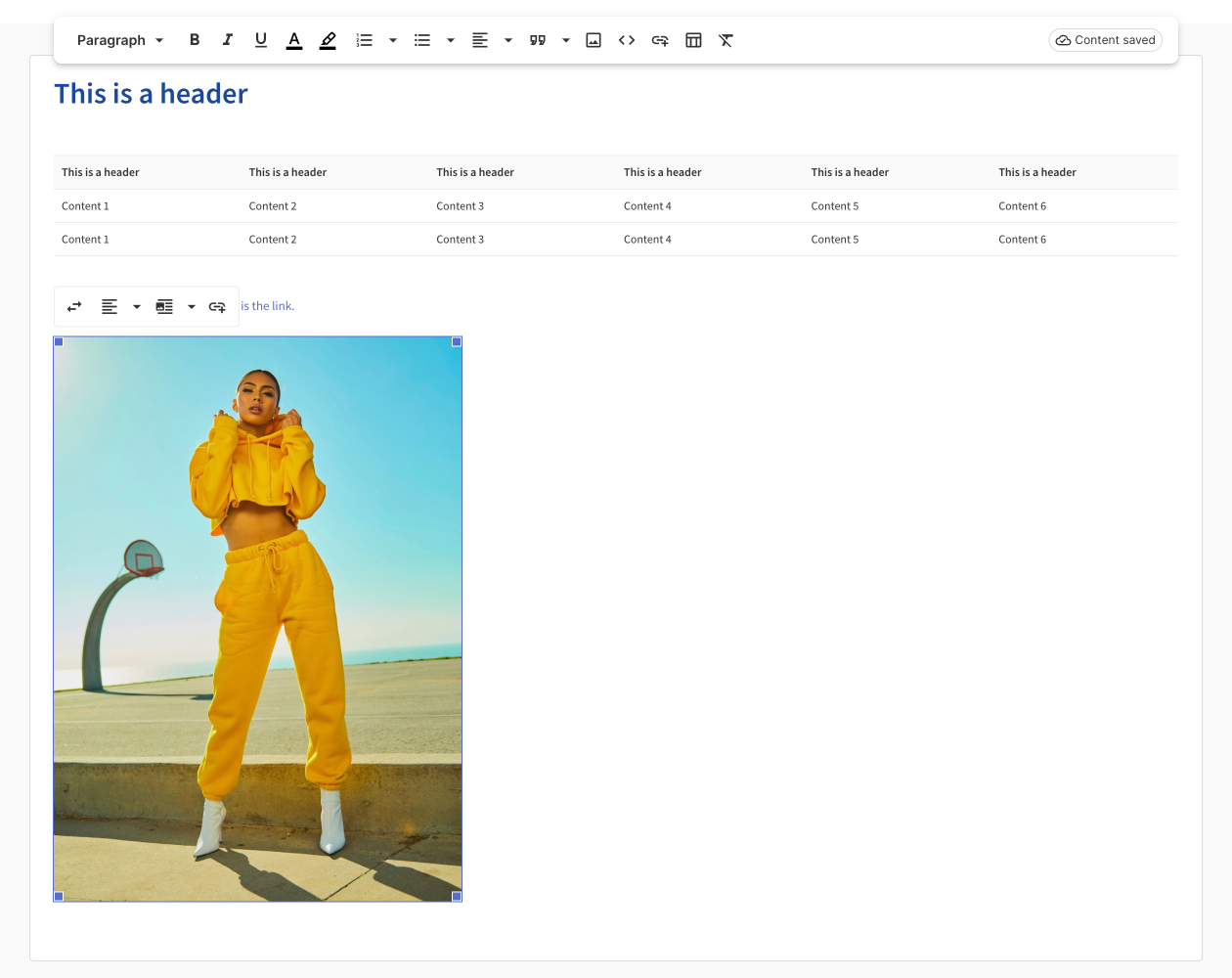
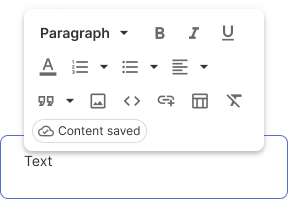
Menu with widget at 100% size

Differently from the previous design of the menu and text editor, where the whole text editor once activated was getting an elevation and contextually showing the menu inside of it, now the solution wants the menu to be placed above the top border of the widget.
This solution allows the widget to keep a behaviour similar to other widgets and avoids having the focus on the whole element but focusing on the menu only.
MENU WIDGET AT 50% SIZE
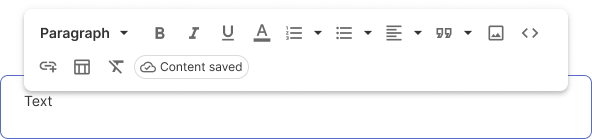
MENU WIDGET AT 25% SIZE
NEW CONTEXTUAL MENU AND FEATURE
To improve the behaviour of the text widget, besides small details for the UI, I also wanted to improve the behaviour of the contextual menu of the:
- Tables
- Images
- Links
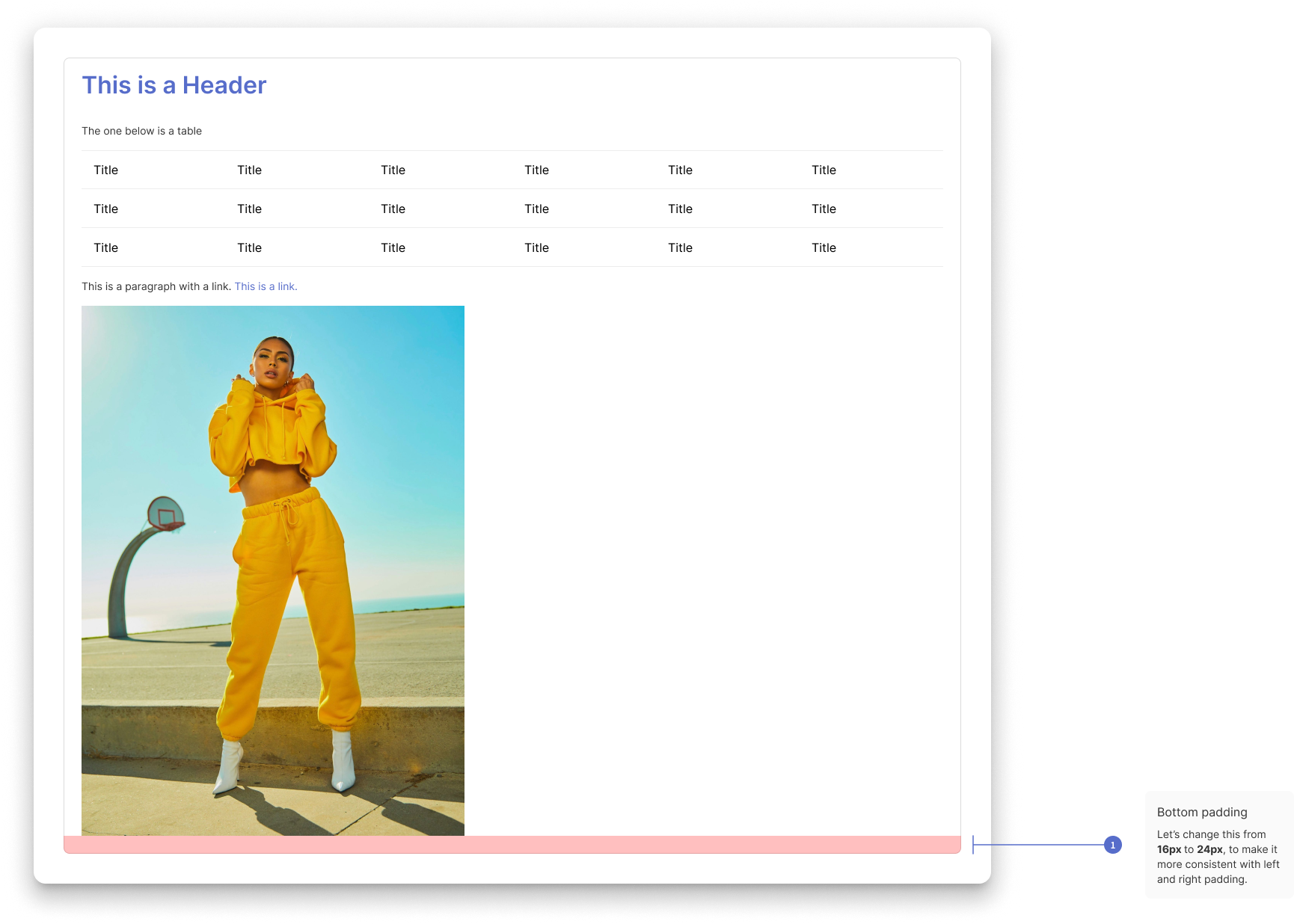
DEFAULT TEXT WIDGETS IMPROVEMENTS
HOVER TEXT WIDGET
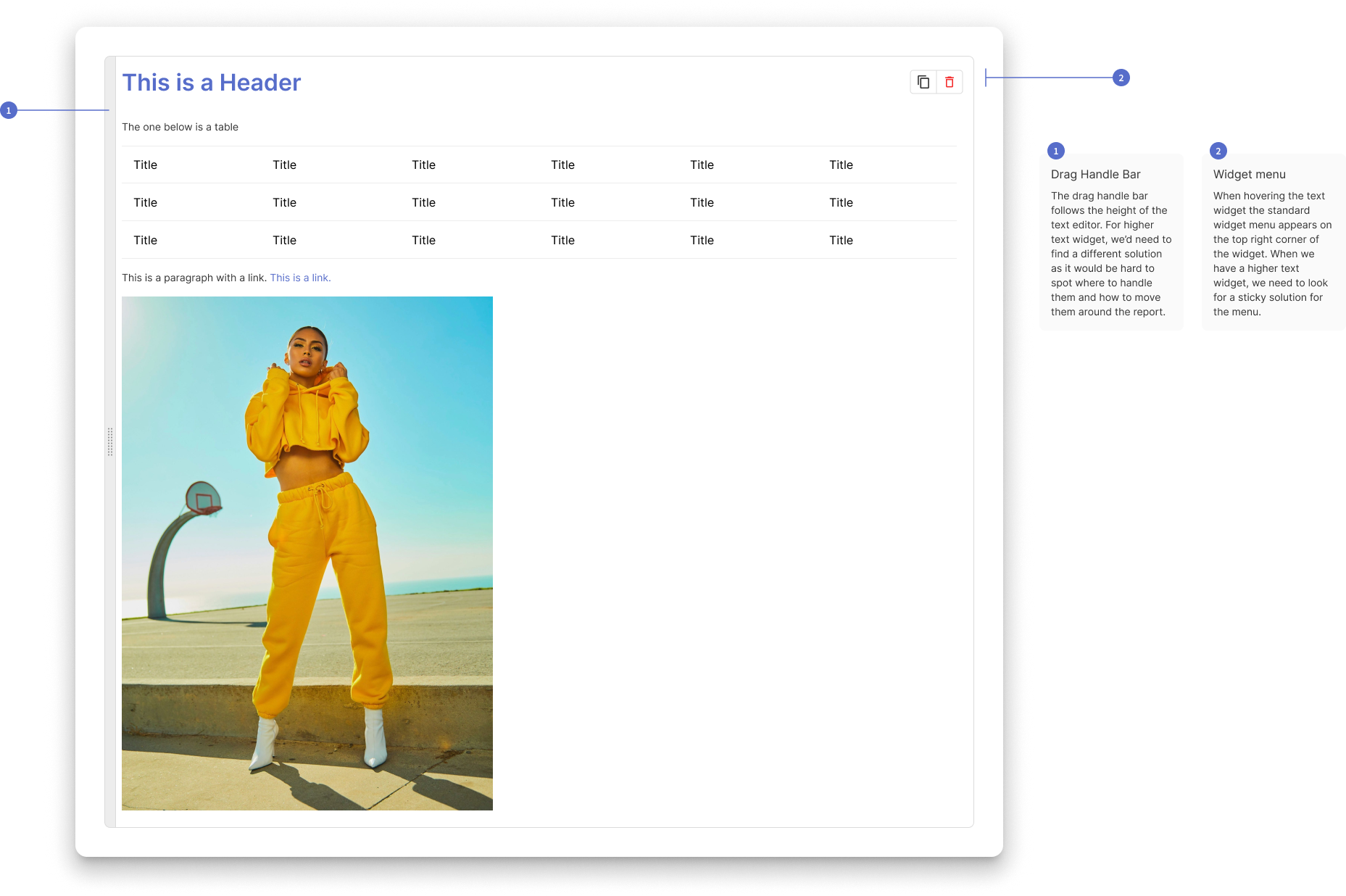
TABLE CONTEXTUAL MENU
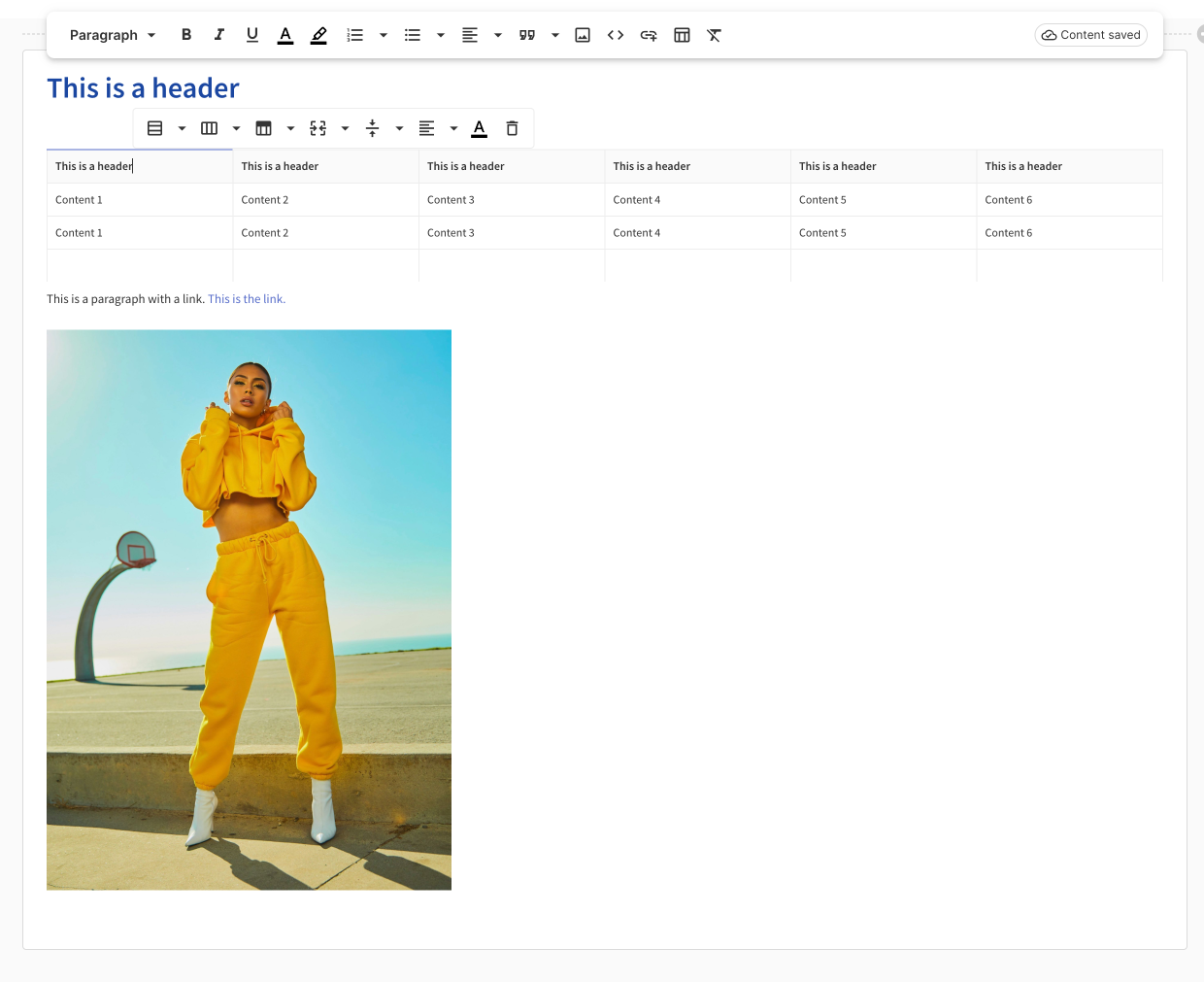
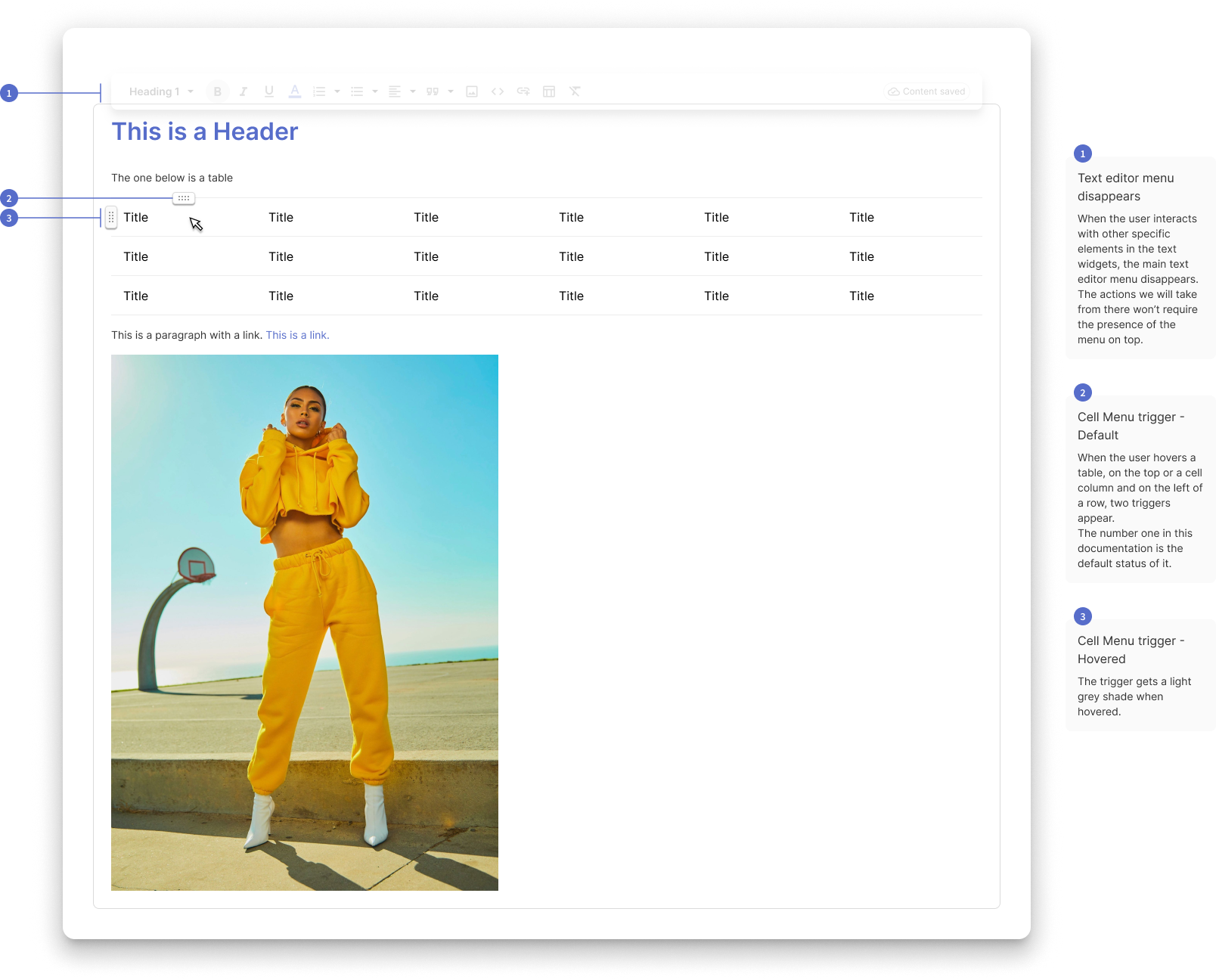
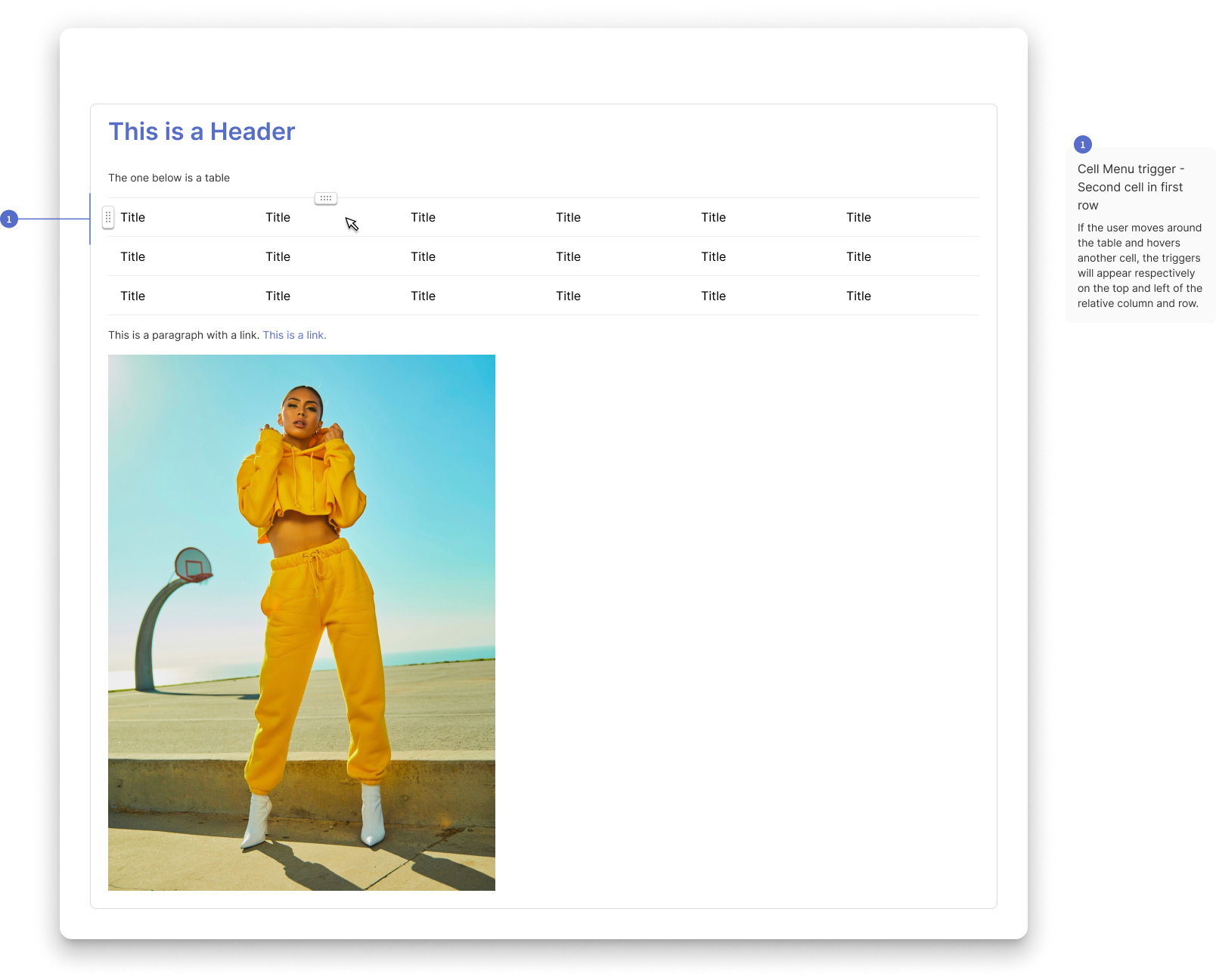
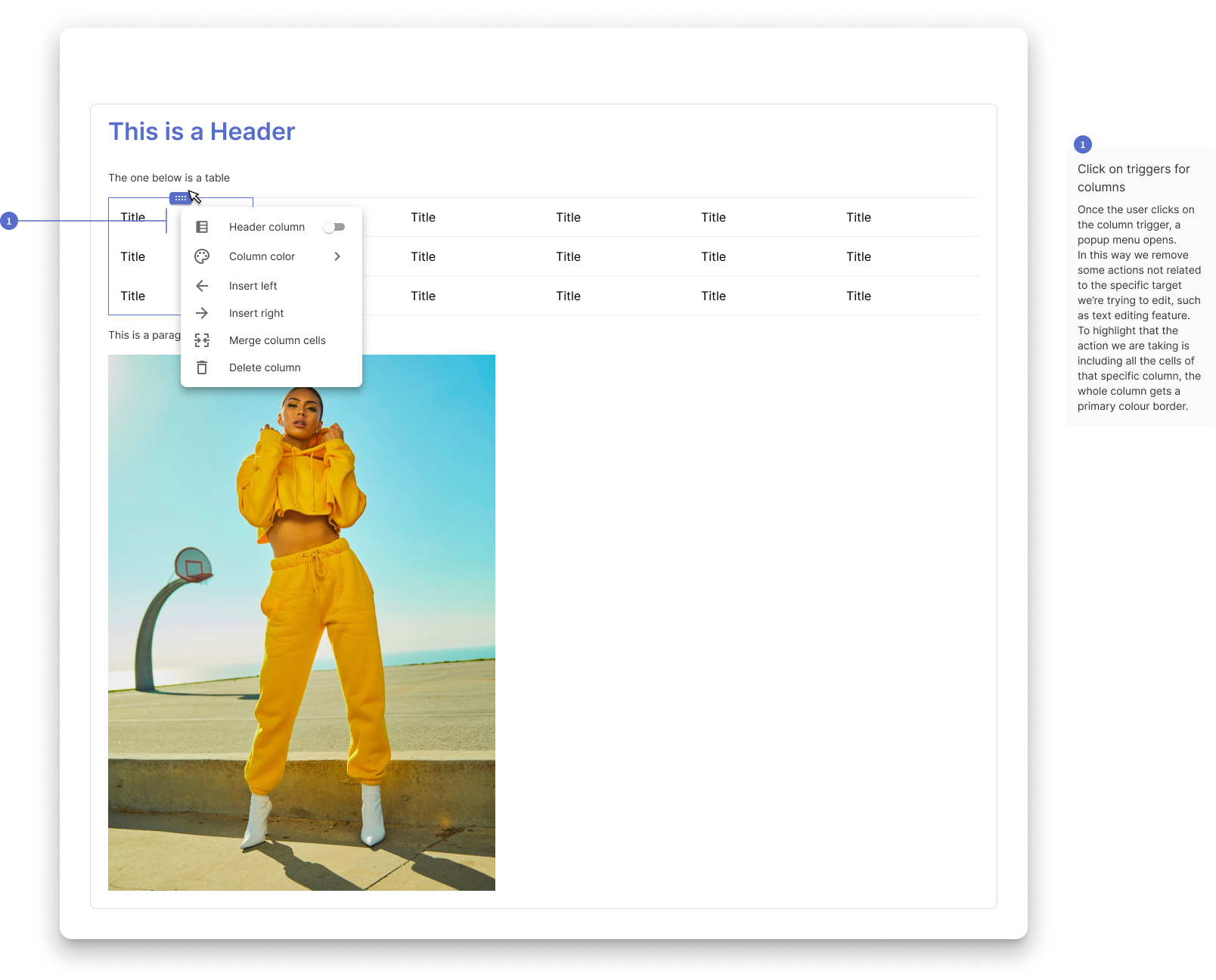
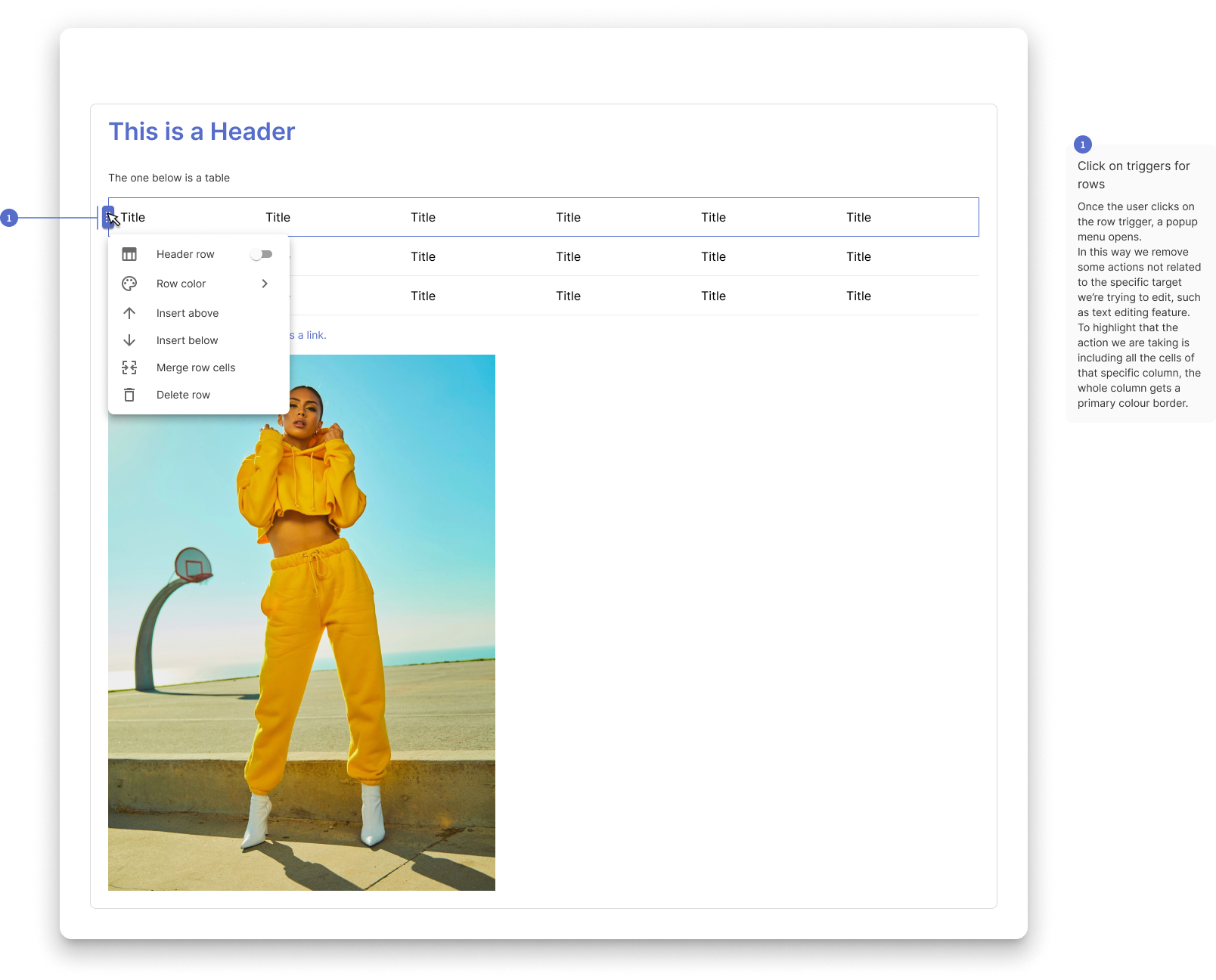
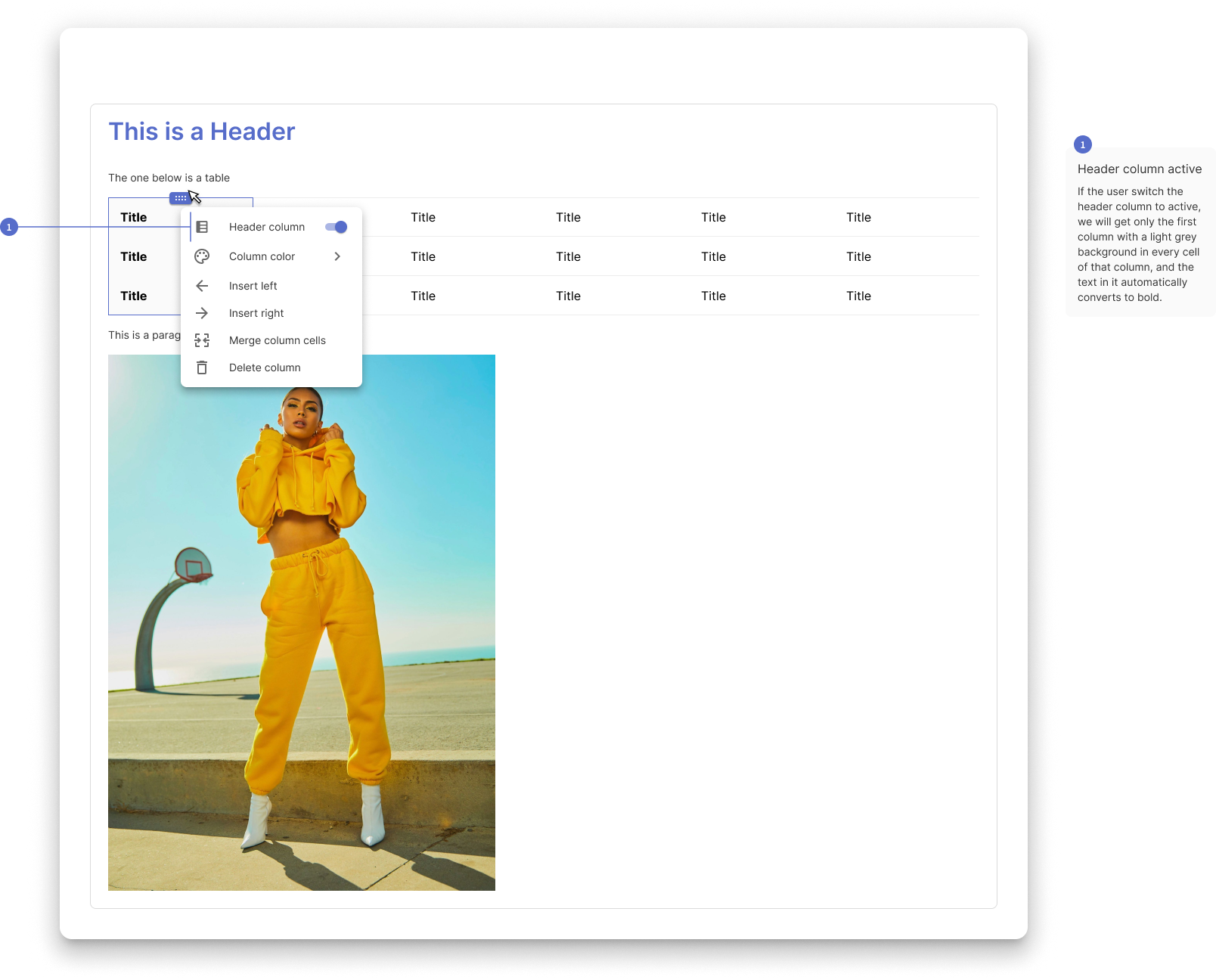
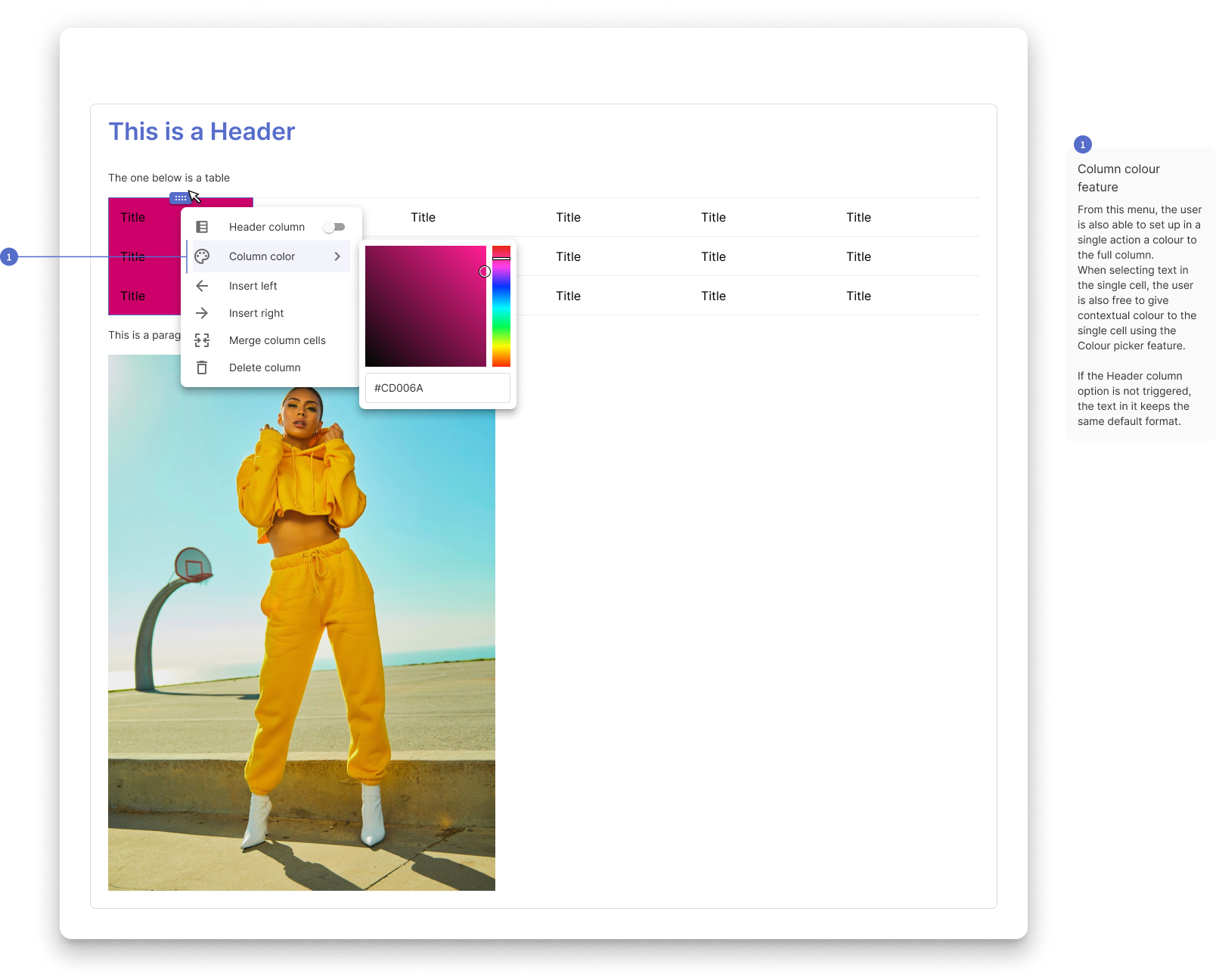
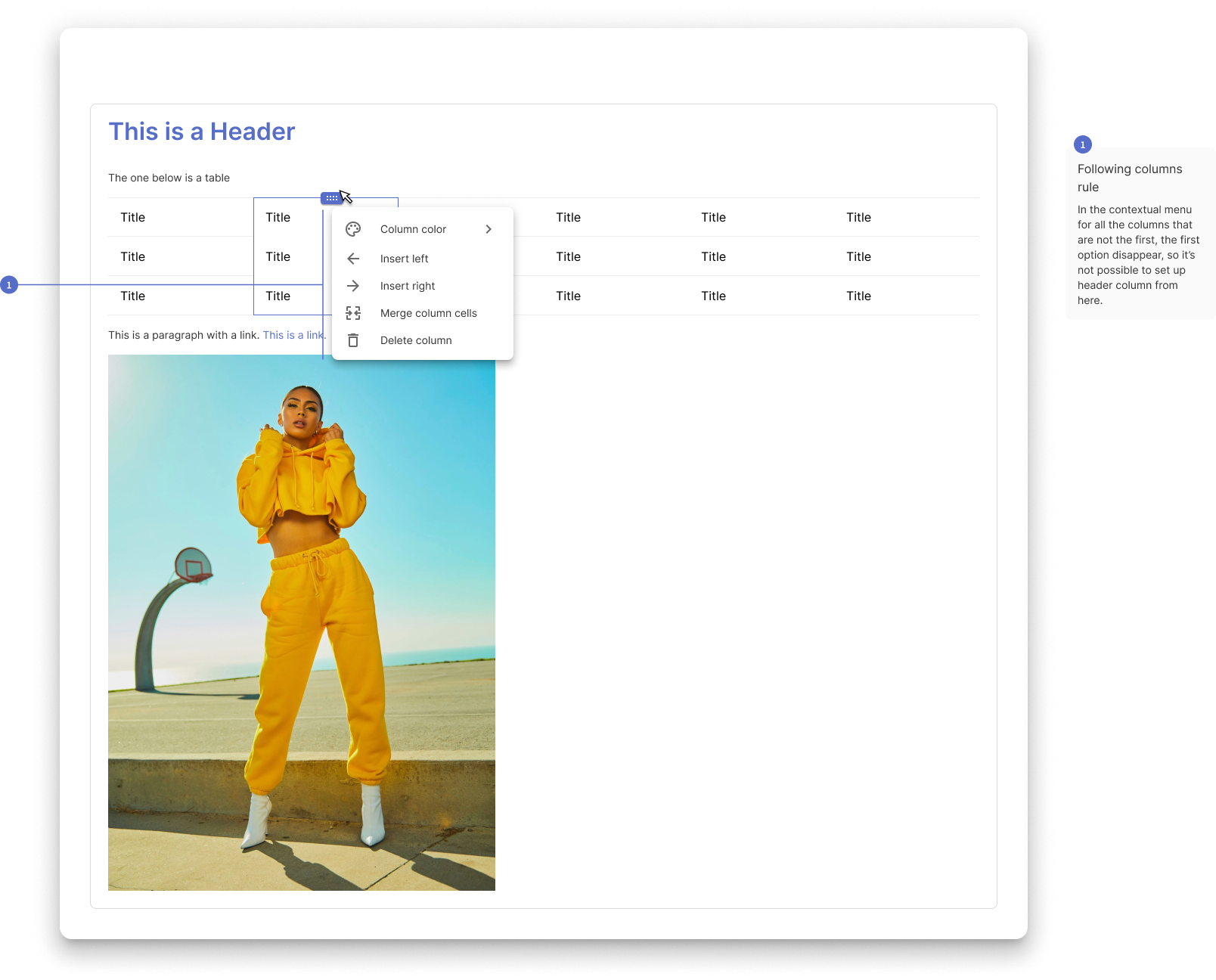
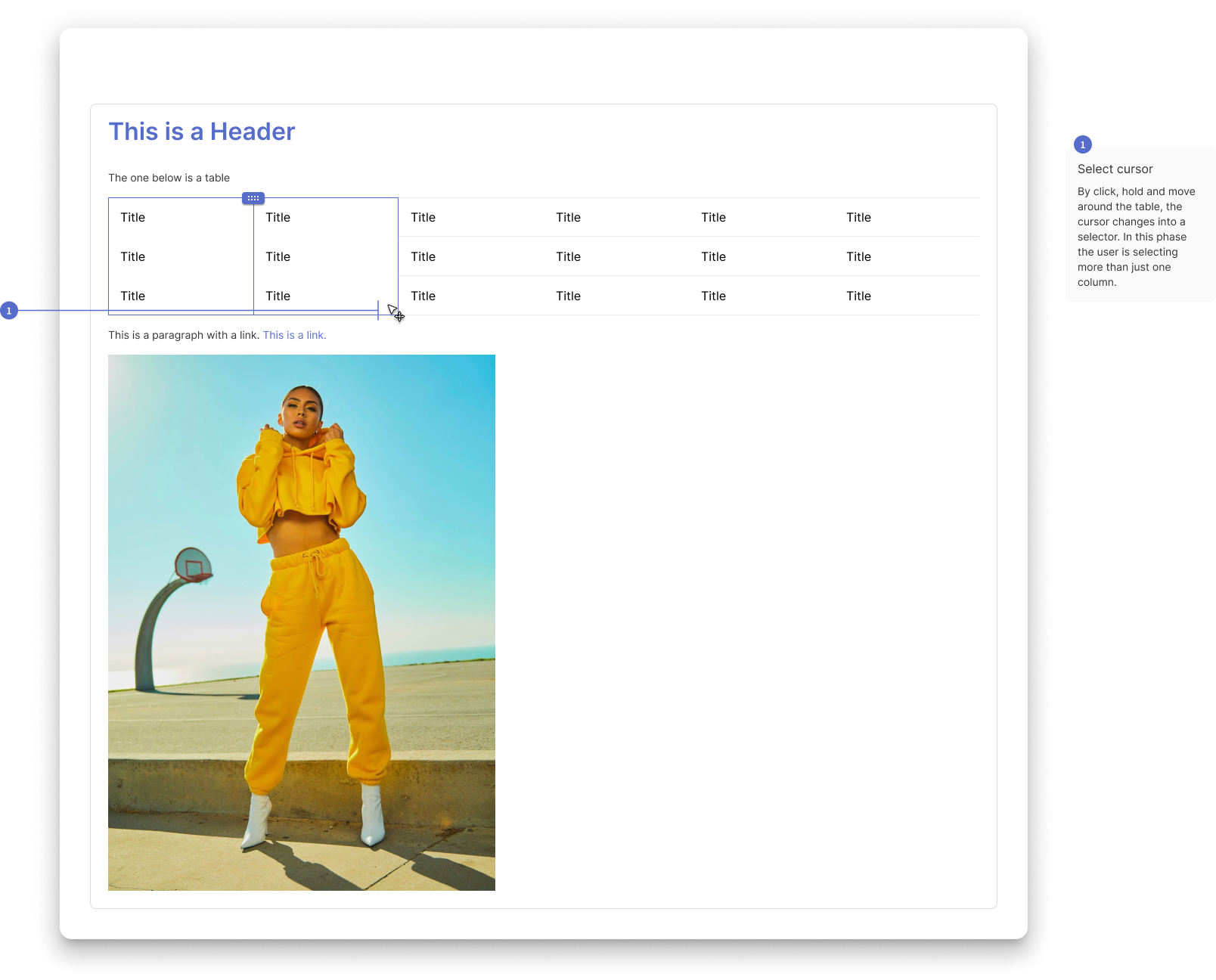
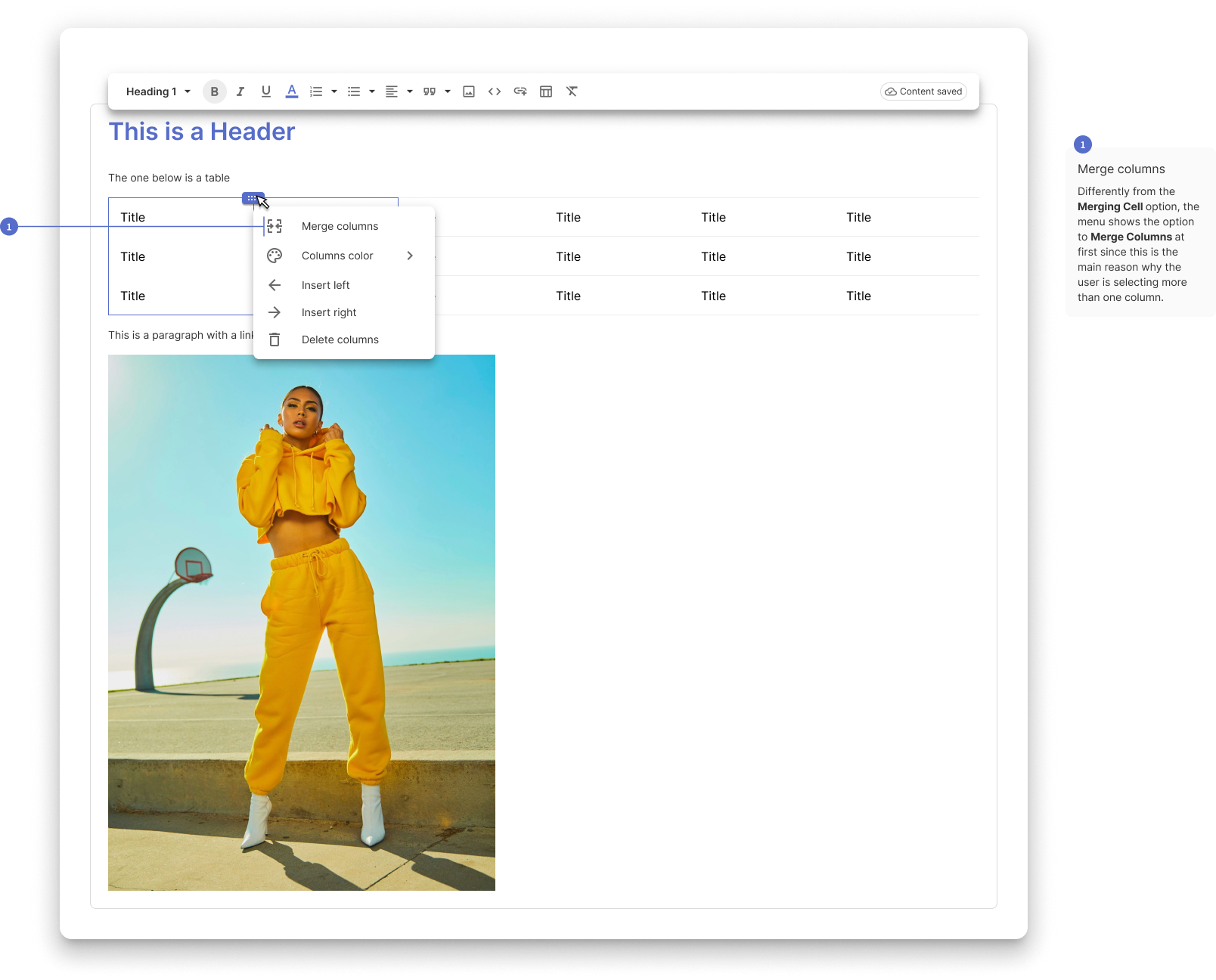
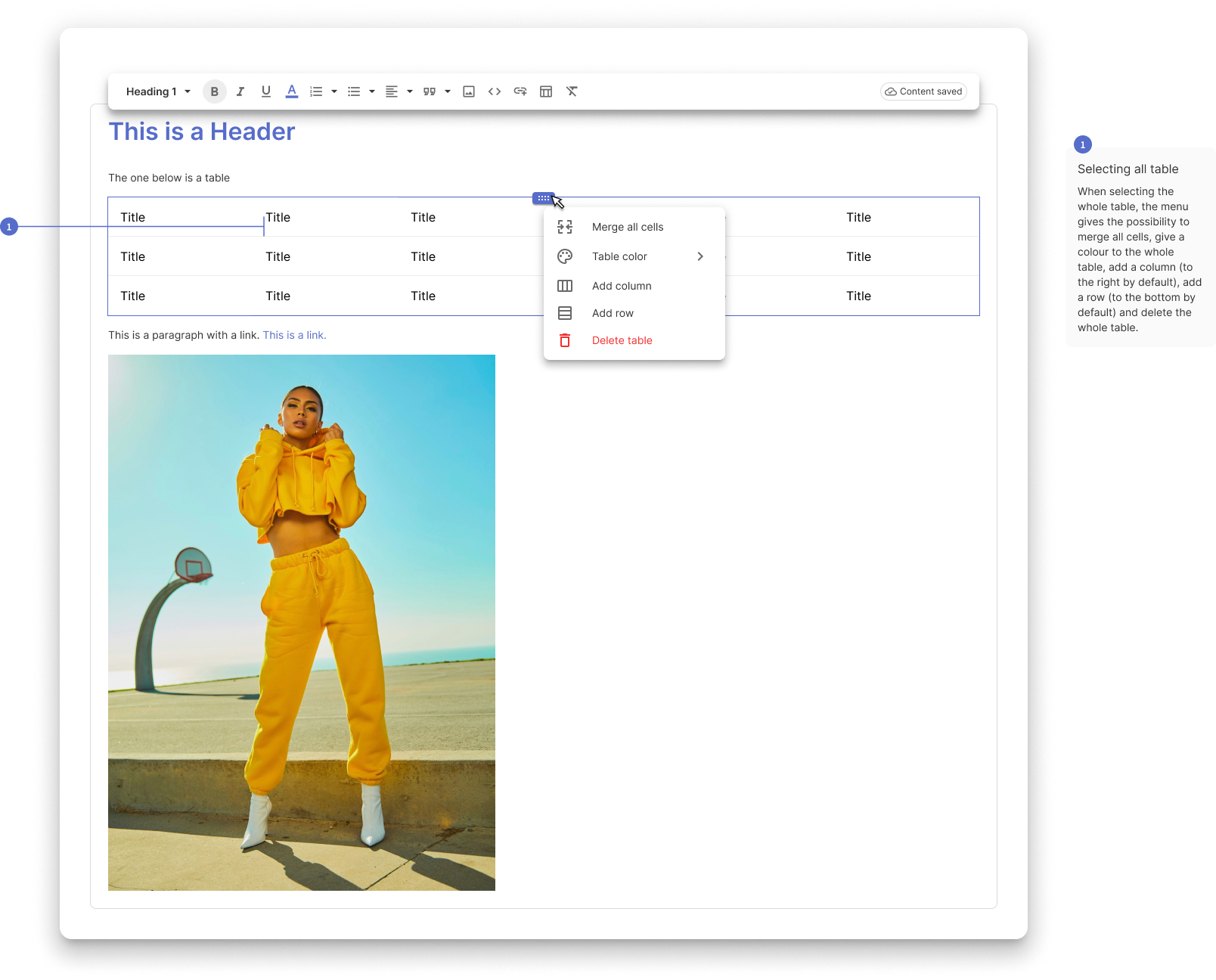
To improve the usability of the table's menu, I noticed that other products also adopt a more contextual solution. This can be achieved by using different solutions, I decided to use interactive handlebars.
EDITING TABLE FEATURES
In this flow, I looked for a more approachable solution for the users. The pain point for this flow was the lack of clarity on what the user was editing and the conflict the menus, main menu, and table menu, were getting into.
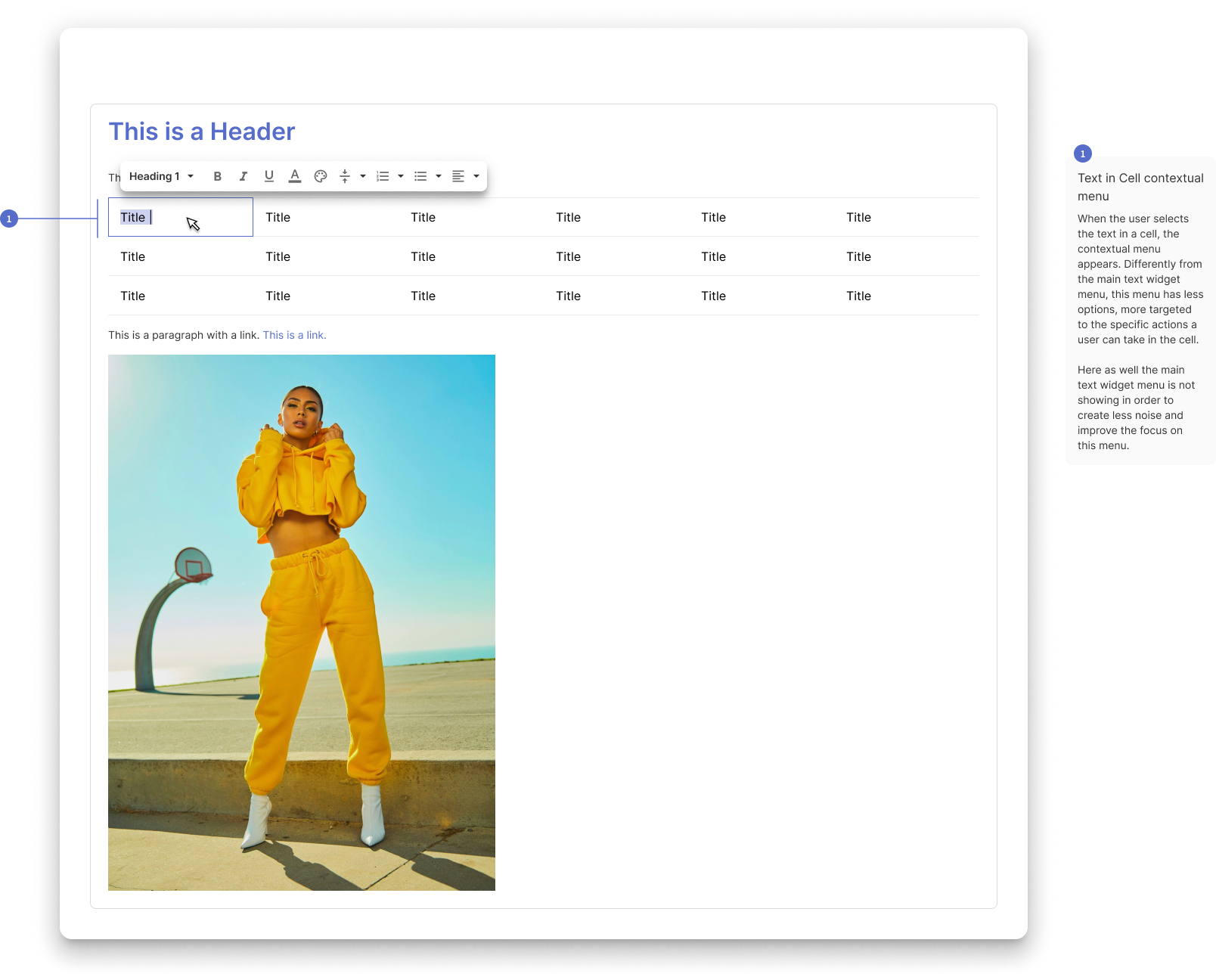
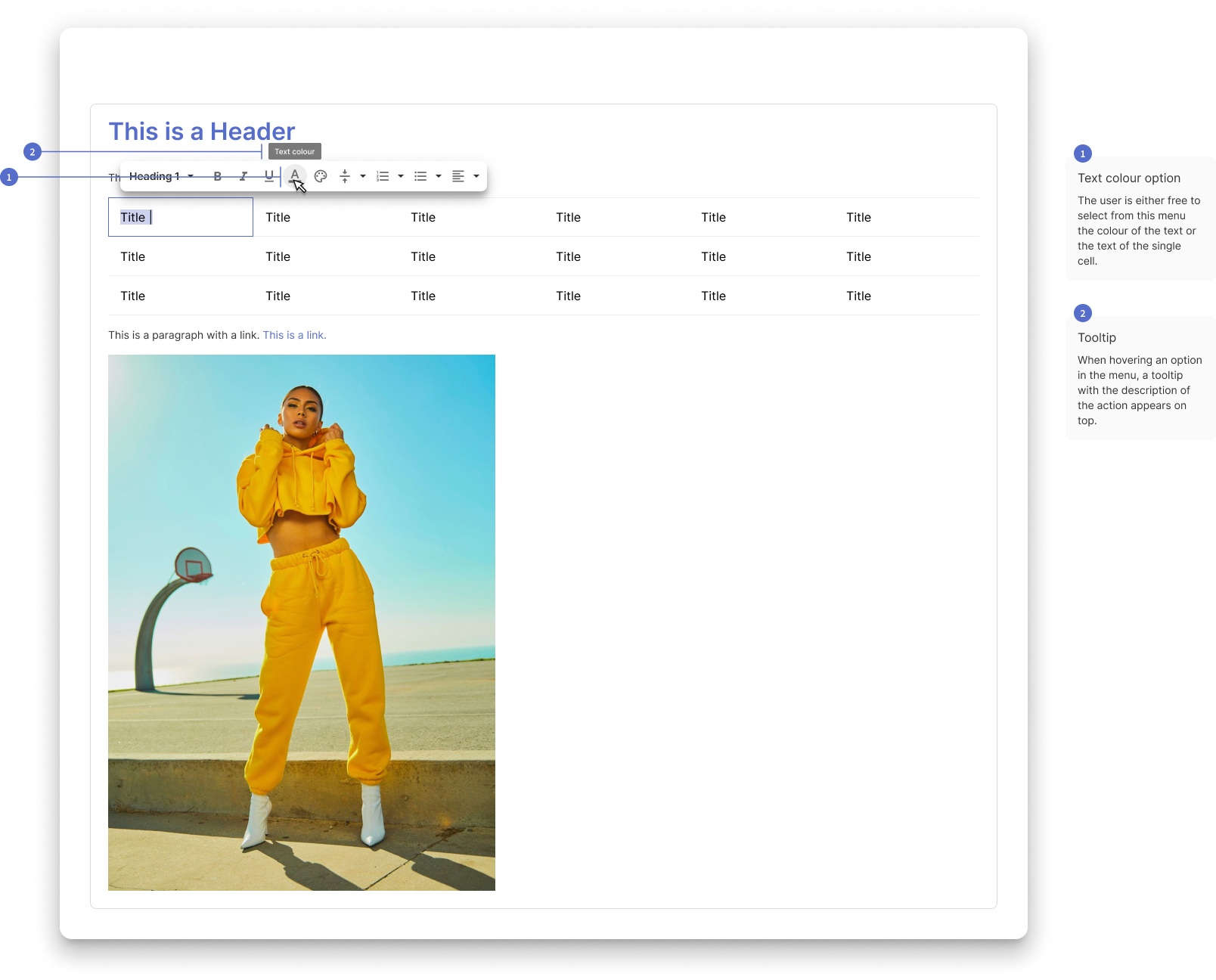
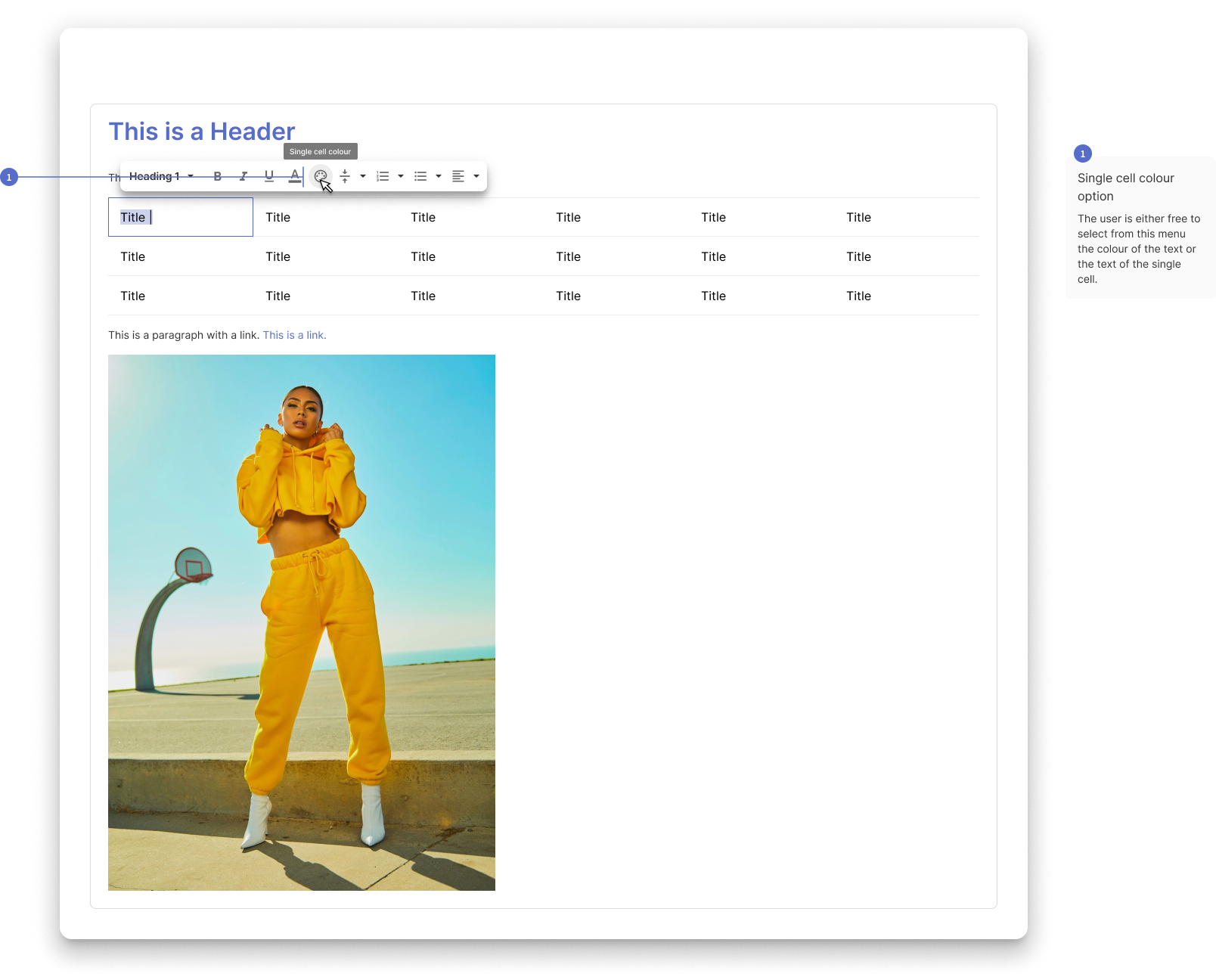
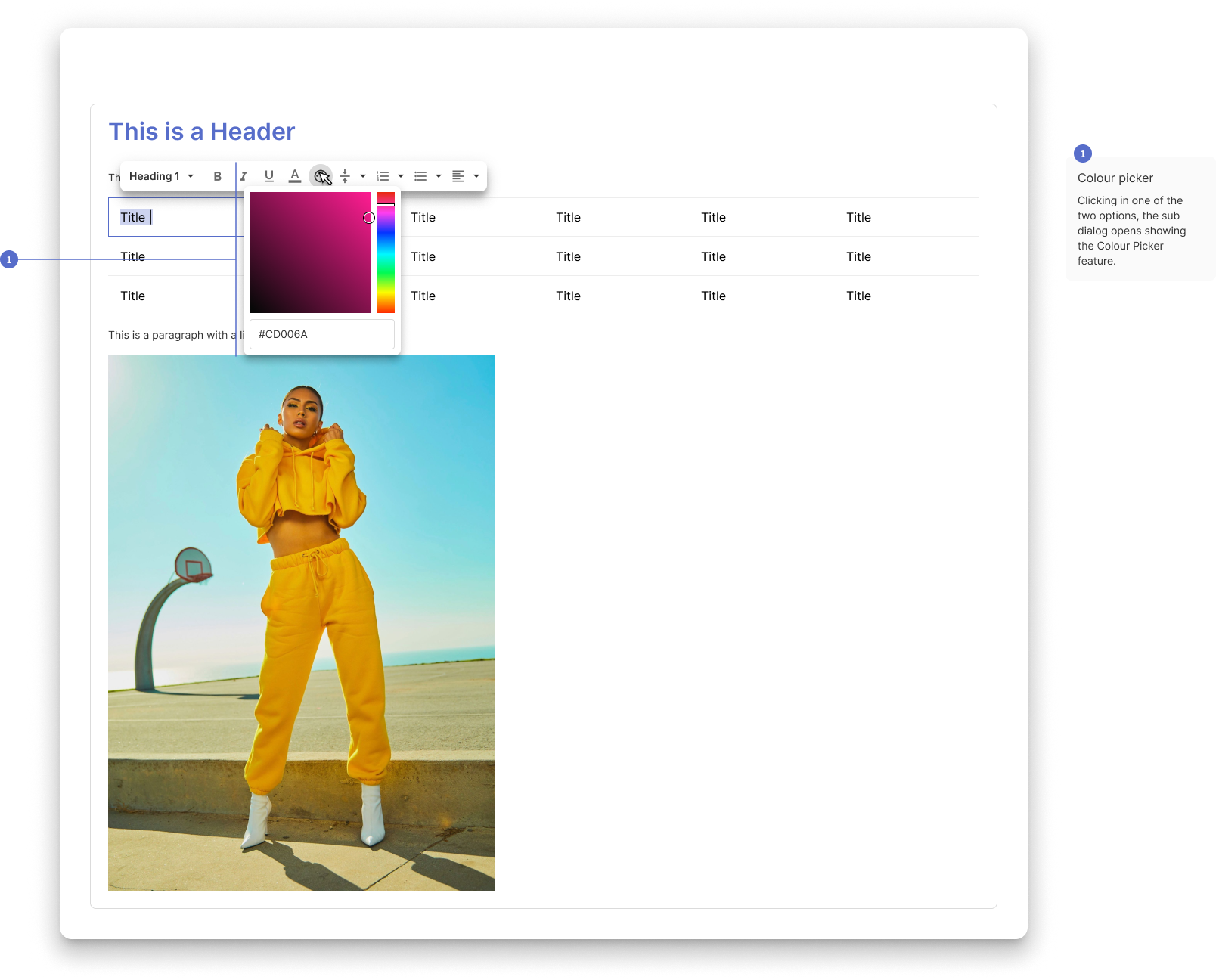
TEXT IN CELL CONTEXTUAL BEHAVIOUR
When a user needs to edit the content of a cell, the behaviour is similar to the main menu, but in this case contextual to the cell itself.
LINK CONTEXTUAL MENU
In the examples below there is the old contextual menu for links in the text editor. The critical aspect of this element was the lack of visibility, as it was hard to find on the page. The solution was to use a different elevation to it.
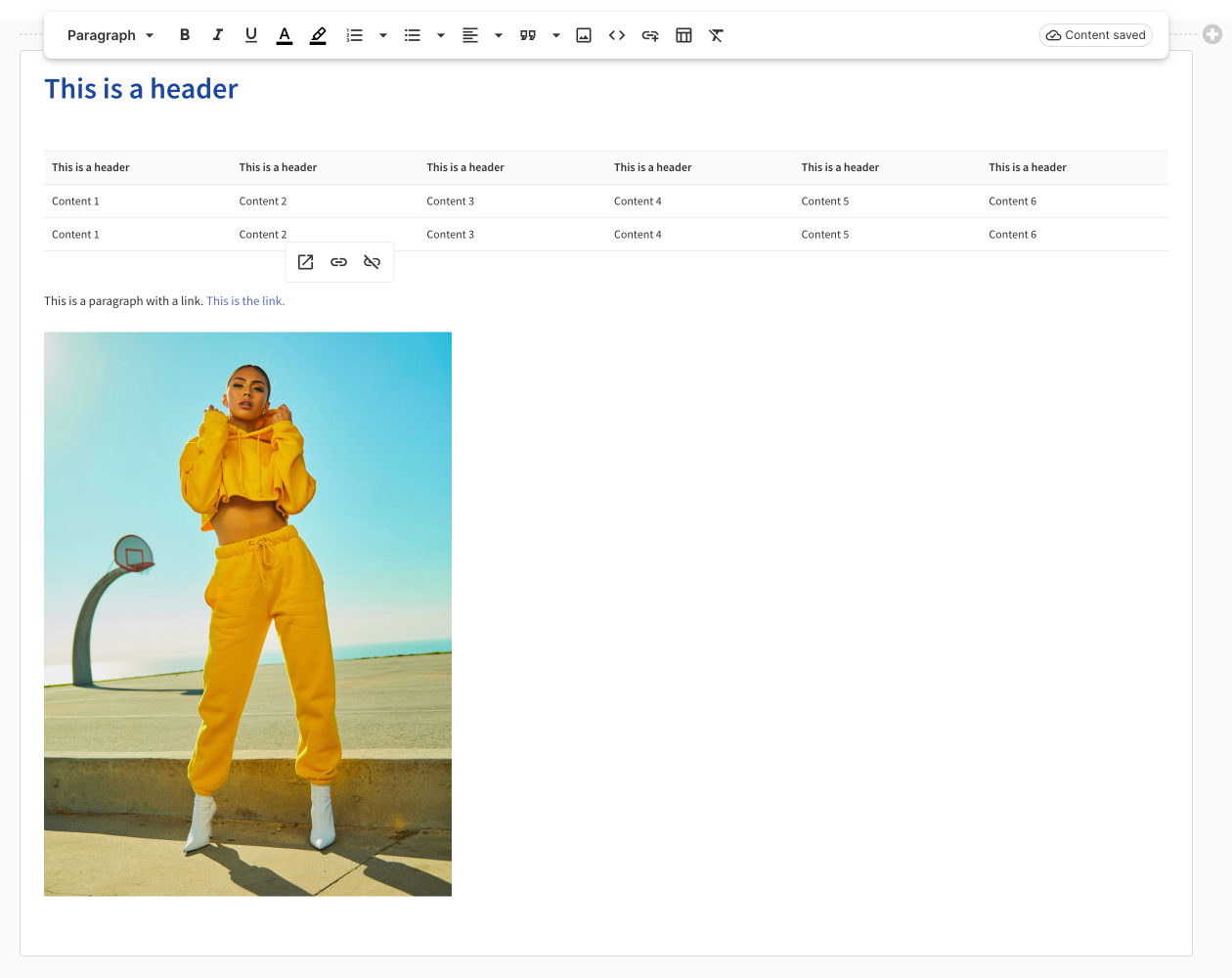
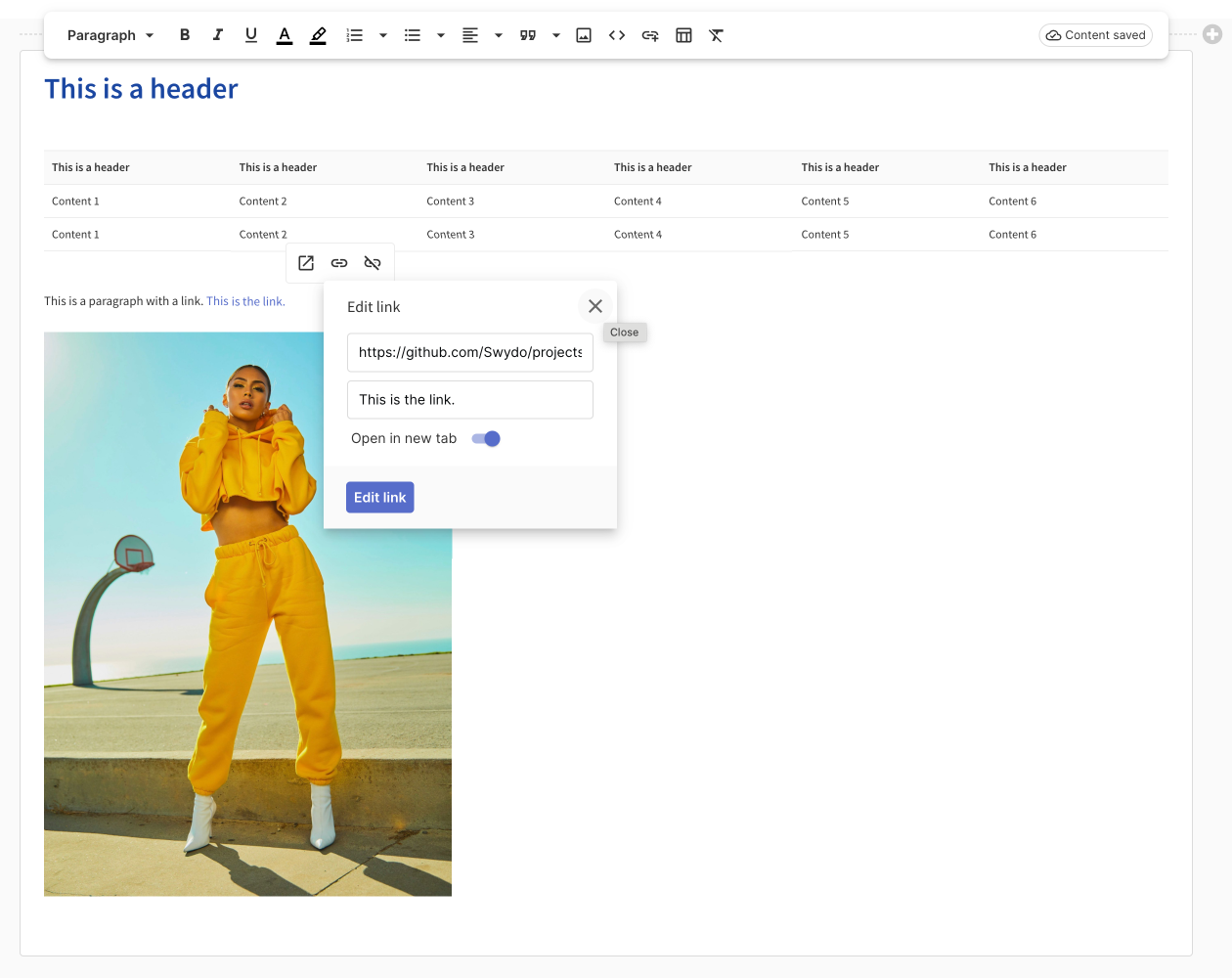
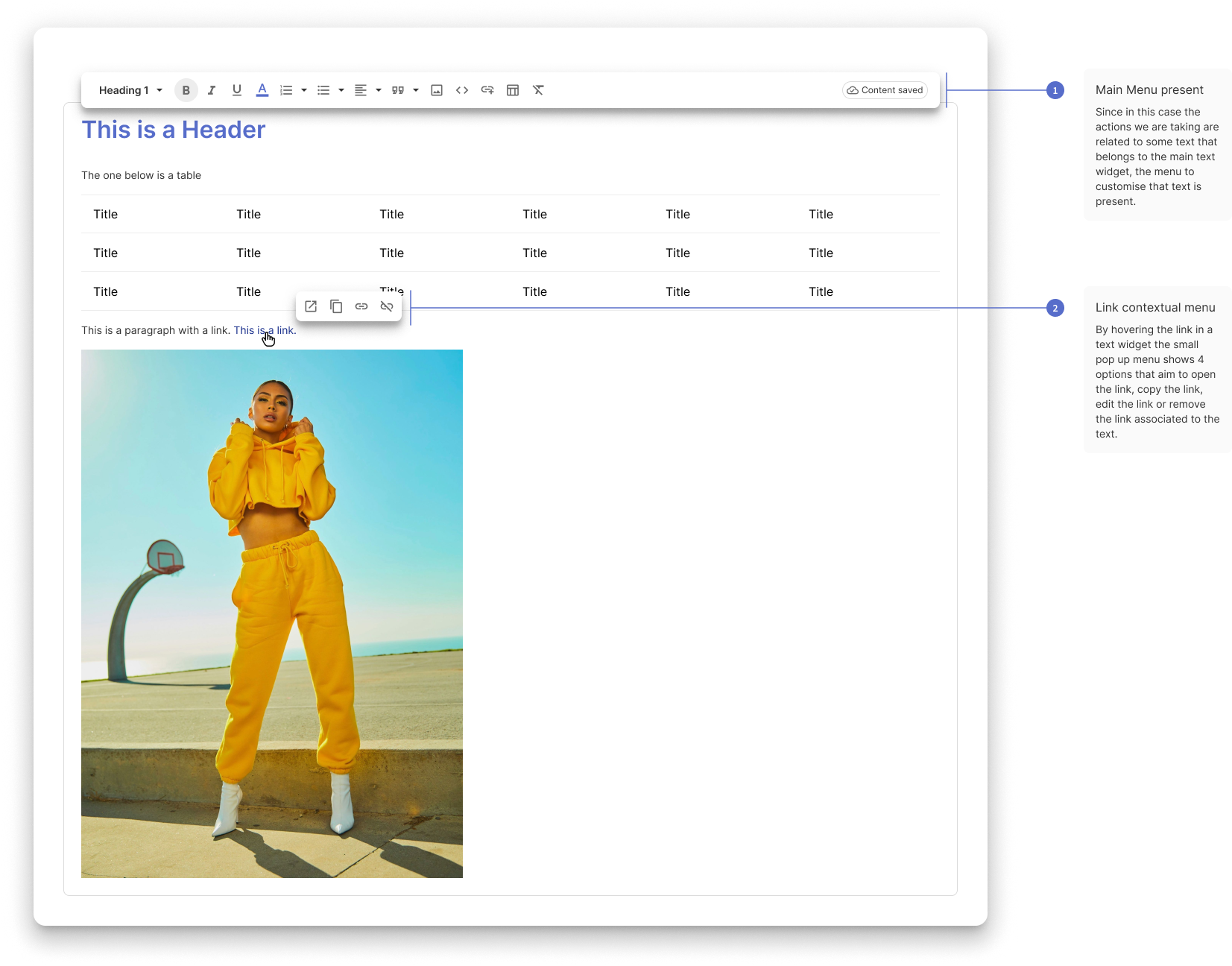
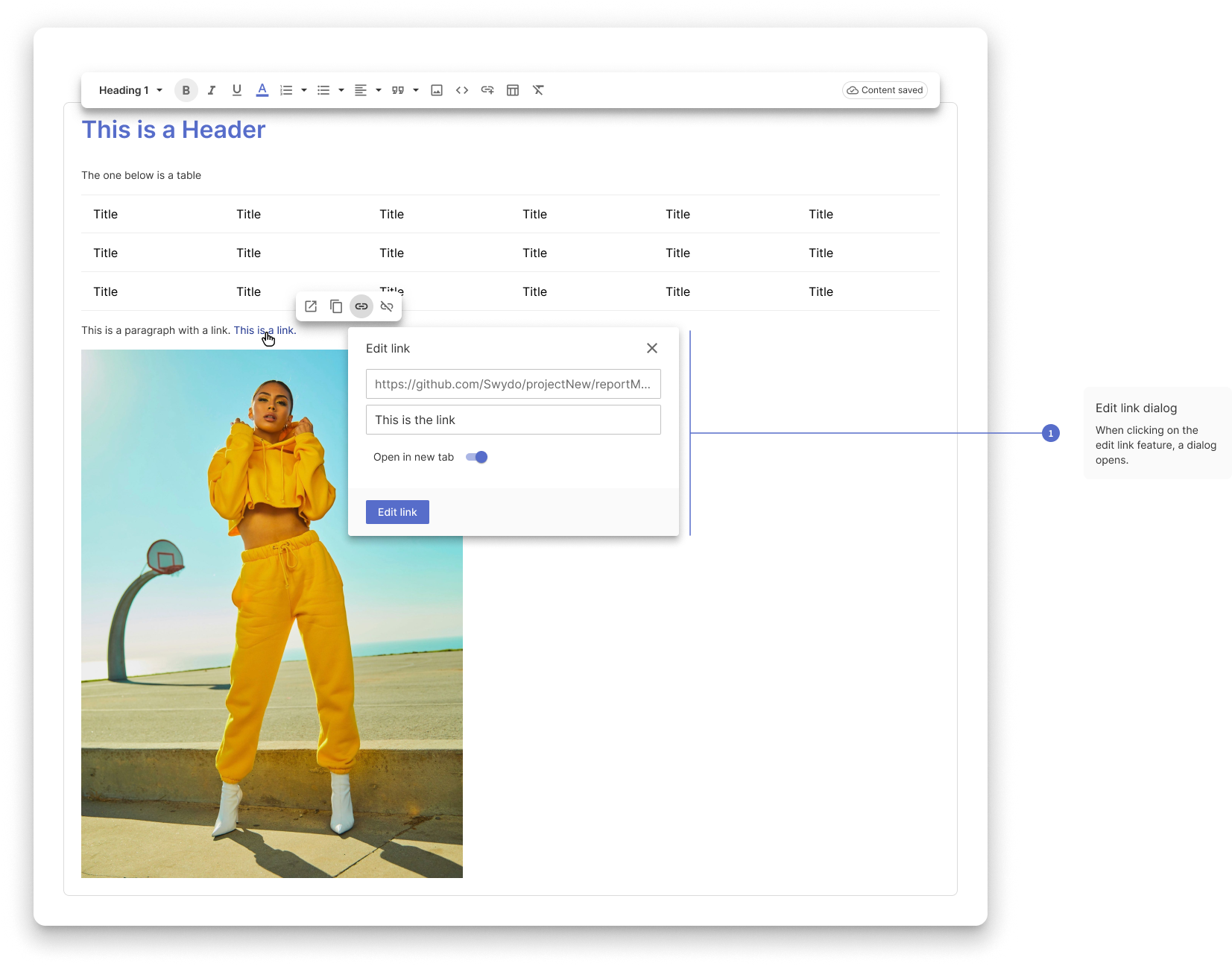
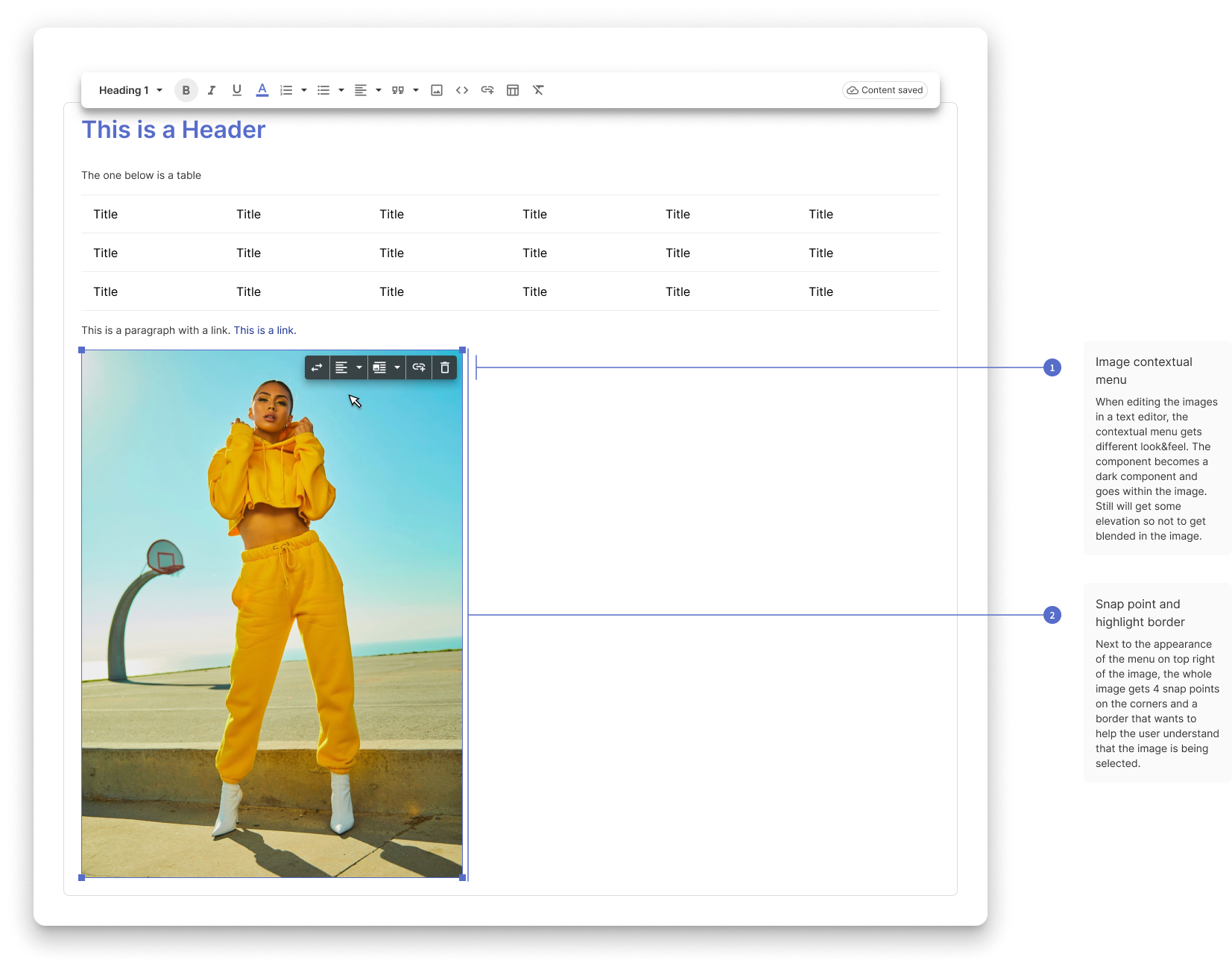
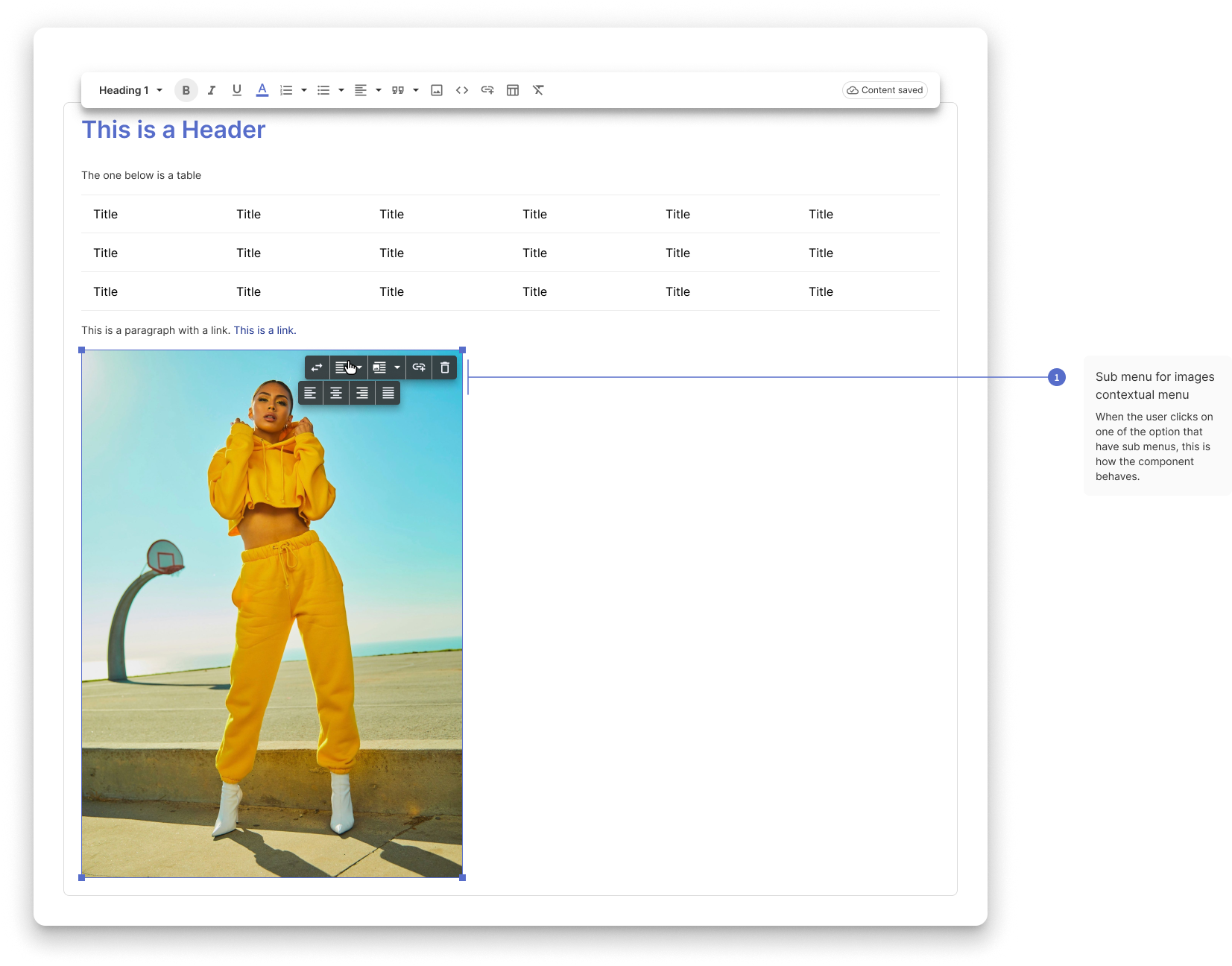
IMAGE CONTEXTUAL MENU
On the images menu the issue was similar to the link menu. My solution was to have a menu in the image to enhance its presence, not above it.